
Tool access and roles
Switch tools on or off, understand risk badges, and set the minimum WordPress role allowed to run each tool.
Tools are the actions Octo can take, such as searching content, creating a draft or updating a post. Settings → Tools decides which tools exist for your site.
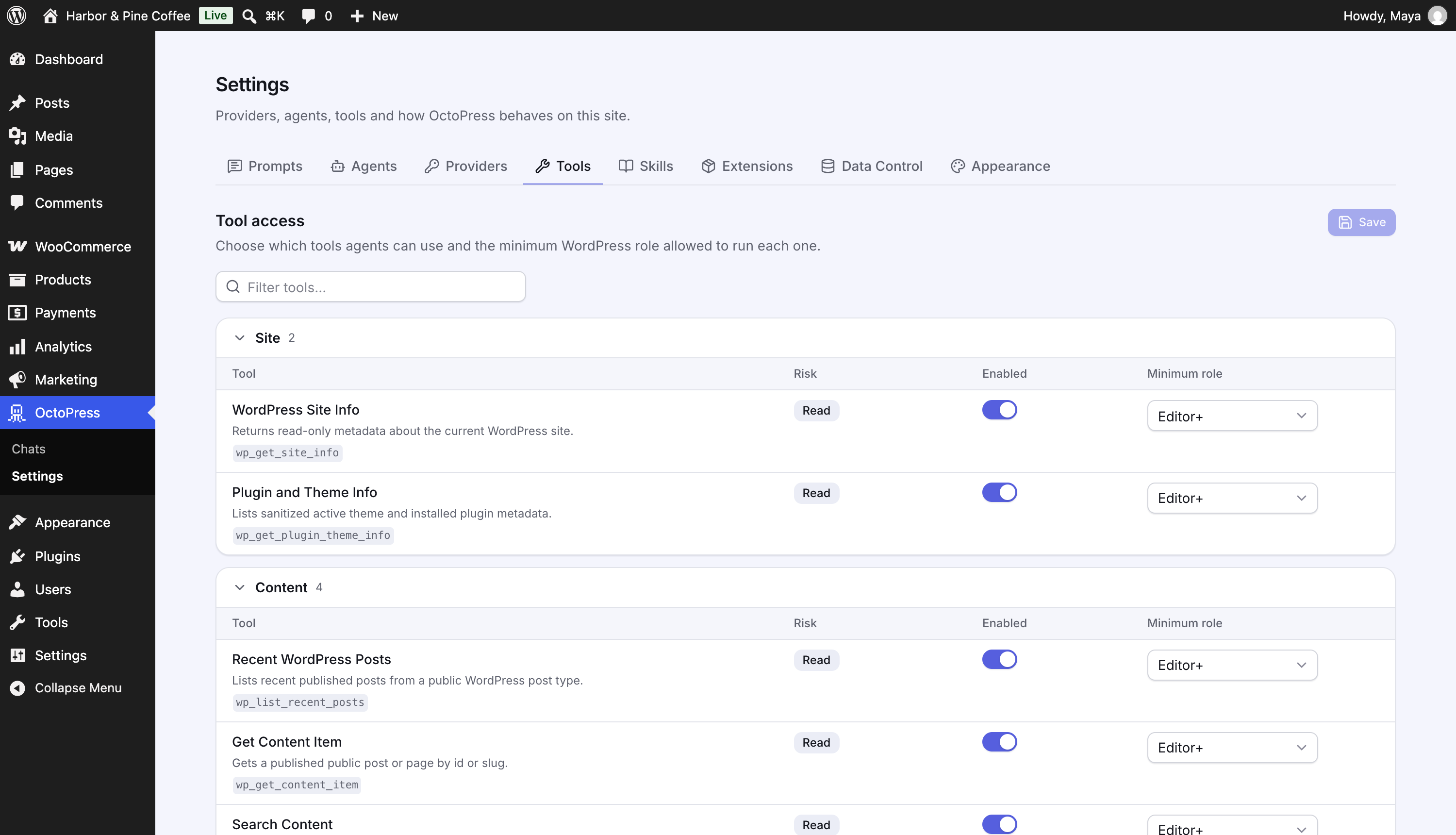
The Tools screen#
The screen is titled Tool access: "Choose which tools agents can use and the minimum WordPress role allowed to run each one."
- Filter tools… searches names, labels and descriptions.
- Tools are grouped, for example Site, Content, Block Editor, Publishing, Media, WooCommerce, and with Pro Files, Validation, Shell, Code Runner, Schedules and Research. Click a group header to collapse it.
- Each row has the tool's label, description and technical name, plus:
- Risk: a badge such as Read, Draft write, Media write, Commerce write, SEO write, File write, Validation, Shell, Code execution or Destructive. Read tools only look at your site; any other badge can change something.
- Enabled: switch a tool off and no agent can use it.
- Minimum role: the lowest WordPress role the tool is offered to: Administrator+, Editor+, Author+, Contributor+ or Subscriber+. The setting is greyed out while the tool is disabled.
- Click Save. The page warns you if you leave with unsaved changes.
Abilities from other plugins#
Plugins that use the WordPress Abilities API can expose actions to Octo. They appear in groups named Abilities: … (for example Abilities: site). Their risk badge comes from the ability itself. Review them before leaving them enabled: some are marked Destructive. WooCommerce uses separate OctoPress-owned tools in the WooCommerce group instead of this bridge.
How access is decided#
A tool is available in a run only when all of these are true:
- Its extension is enabled.
- The tool is switched on here.
- Your WordPress role is at or above its Minimum role.
- The selected agent allows the tool (Agents → Tools).
- It is supported by the provider, for tools that depend on one (see Tools reference).
If a tool seems to be missing, walk down this list. See Common problems.
Notes#
- A few internal tools that let Octo ask questions, propose plans, hand off to another agent, load skills, re-read images or look up OctoPress's own help are not listed here because they are part of how chats work. See Tools reference.
- Approval is separate from enabling. A tool can be enabled and still ask for approval each time. See Approvals and permissions.
- Today the OctoPress screens are for administrators. The Minimum role setting controls which users a tool is offered to.