Connect a provider
Sign in with ChatGPT or Grok, paste an API key, or add a custom OpenAI-compatible endpoint, then manage or delete providers.
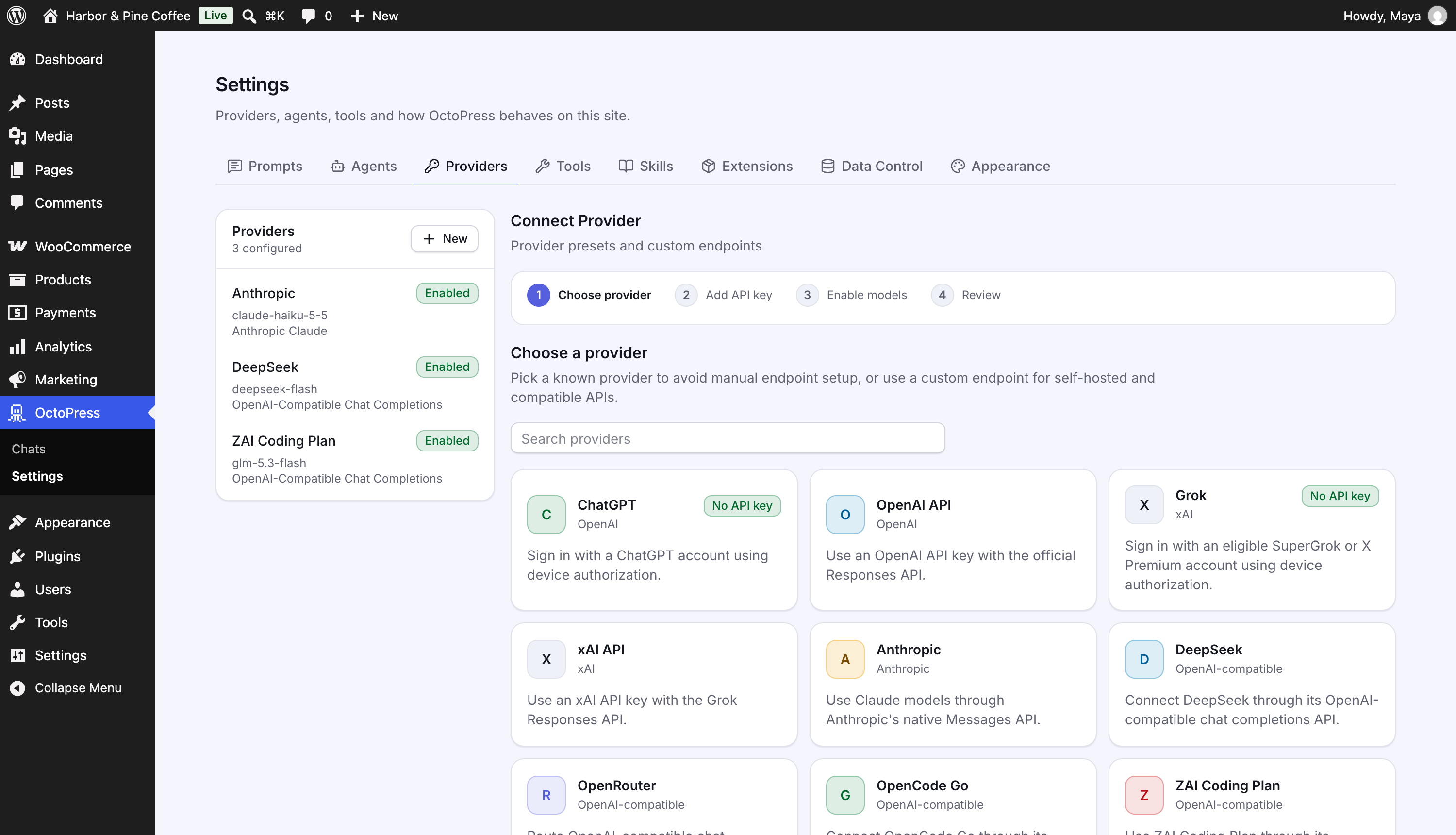
Open OctoPress → Settings → Providers. The left list shows the providers you have connected ("4 configured") with an Enabled or Off badge, the default model and the connection type. The area on the right opens on the Connect Provider wizard. Click a provider in the list to manage it instead.
Connect with a ChatGPT or Grok account#
No API key needed. You sign in with the account you already use.
- Click New, then ChatGPT or Grok.
- Click Connect ChatGPT (or Connect Grok).
- A Device authorization box shows a link and a one-time code, and the time the code expires. Open the link, sign in, and enter the code.
- The status badge changes from pending to connected. Leave the page open until it does.
- Continue to Models and enable the models you want.
Grok sign-in needs an eligible SuperGrok or X Premium account. ChatGPT sign-in uses your ChatGPT subscription where OpenAI allows it.
Connect with an API key#
- Click New and choose your provider: OpenAI API, xAI API, Anthropic, DeepSeek, OpenRouter, OpenCode Go, ZAI Coding Plan or ZAI API.
- On the Add API key step you can edit the Name. The provider's address and paths are shown read-only. Click the link Get an API key from … to open the provider's key page.
- Paste the key and click Save and sync models.
- On Enable models, choose your models and default, then click Continue.
- Review shows the summary. Click Finish.
Anthropic works with an API key only. A Claude.ai subscription cannot be used.
Keys are encrypted on your server and are never shown again in the browser. See Data and privacy.
Add a custom endpoint#
Use Custom endpoint (click Show all providers during setup, or New here) for self-hosted or compatible APIs.
- Choose the Provider type: OpenAI-Compatible Chat Completions or OpenAI-Compatible Responses API.
- Enter a Name and the Base URL (for example
https://api.example.com). - Keep or edit the paths: Chat completions path (
/v1/chat/completions) or Responses path (/v1/responses), and Models path (/v1/models). - Paste the API key and click Save credentials, then sync models.
Manage an existing provider#
Click a provider in the list. It has two tabs: Credentials and Models.
- Credentials shows Provider type, Name, Base URL and paths, and the key or sign-in status. A badge shows API key configured or OAuth connected.
- Replace a key by pasting a new one (leave the box empty to keep the current key) and click Save credentials.
- Remove a stored key with Clear saved API key on save, then save.
- For ChatGPT and Grok use Reconnect OAuth or Disconnect.
- Turn the Status switch off to hide the provider from the chat without deleting it.
- Delete (top right) removes the provider, its saved credentials and its model settings permanently. A confirmation window asks first.
Troubleshooting#
- No models appear after connecting. Open the Models tab and click Sync models. If the list stays empty, the key is wrong or the account has no access to models.
- A provider is missing in chat. It needs to be switched on and have at least one enabled model.
- More help: Common problems.