
Approvals and permissions
Review each change before it runs, and decide per chat whether Octo may approve selected tools automatically.
Reading your site never needs approval. Actions that change something, such as updating a post, adding media, changing store data, writing files or running code, pause the chat until you decide.
The approval window#
When a change needs approval, a window titled Tool approval required opens with the message "Octo is waiting before running this tool batch."
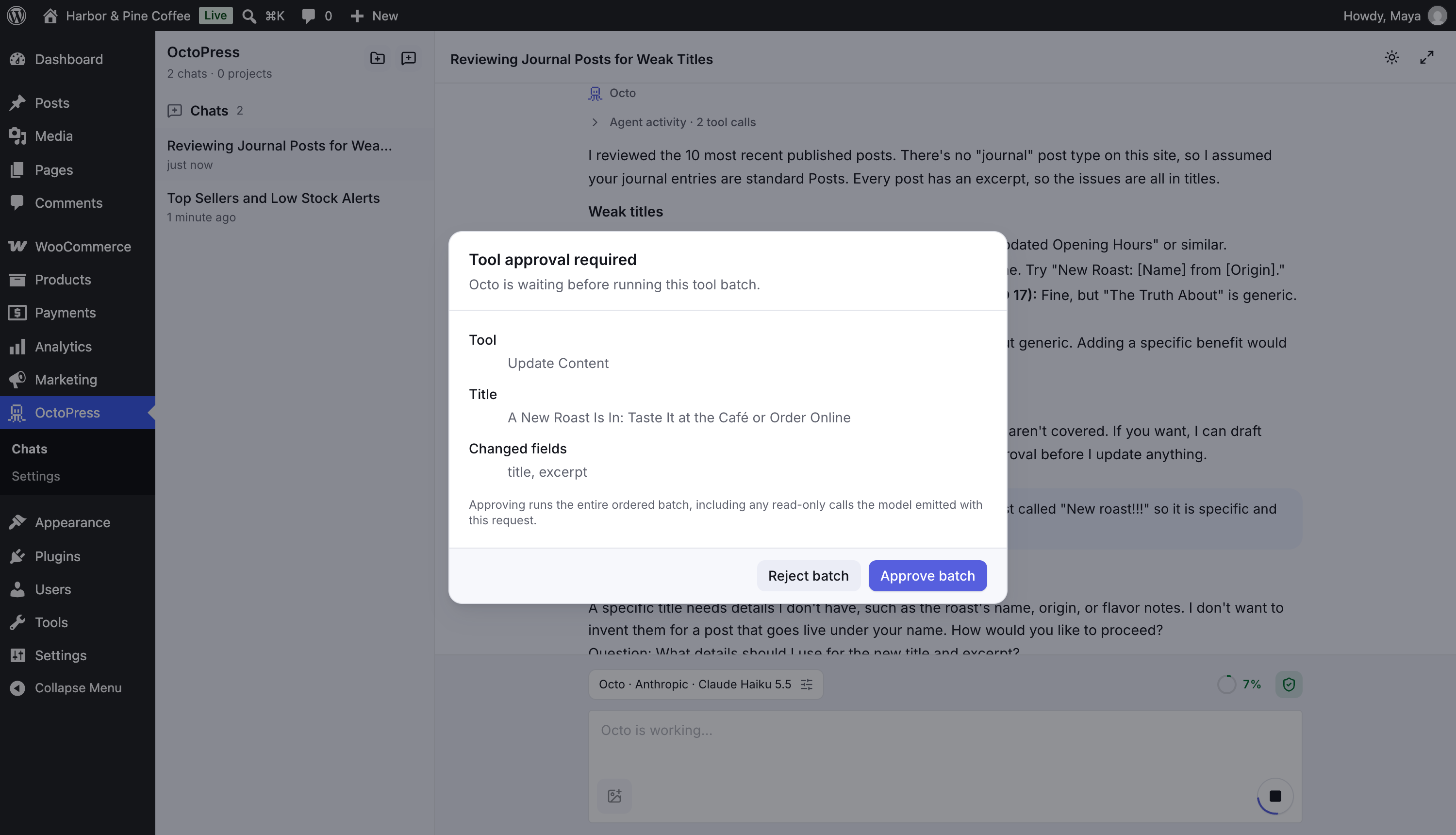
It shows what will happen:
- Tool: which tool will run. If several tools are waiting, they appear on numbered tabs.
- Target path, Title, Command, PHP code, Working directory, Timeout and other details, depending on the tool.
- Changed fields: the fields that will change. For SEO updates (Pro) you see old and new values side by side.
At the bottom: "Approving runs the entire ordered batch, including any read-only calls the model emitted with this request."
- Approve batch runs everything in the batch and Octo continues.
- Reject batch runs nothing. Octo is told the batch was rejected and answers accordingly, for example with an alternative.
The window cannot be dismissed. Decide, or use Stop in the chat to cancel the run. If the tab is in the background, its title starts with (Action needed). If you reload the page, the pending approval is still there.
What needs approval#
| Needs approval | Does not need approval |
|---|---|
| Creating or updating posts, pages and eligible custom content | Reading posts, pages, settings and plugin info |
| Importing files to the Media Library | Searching and listing content |
| Changing WooCommerce data (create, update, delete) | Validating block content |
| SEO metadata updates (Pro) | Looking up blocks, patterns and theme styles |
| Writing files, running commands or PHP (Pro) | Linting and running builds (Pro) |
| Creating, running or deleting schedules (Pro) | Asking you a question or proposing a plan |
The five WordPress management tools also require approval for term/menu creation, comment replies, metadata edits, trash and restore. Content creation defaults to draft; publishing or scheduling must be explicitly requested. Your chat's auto-approval settings still apply.
The exact list for your site is in Settings → Tools: tools with a risk badge other than Read are the ones that can change something. See Tool access and roles.
Permissions per chat#
Open the Permissions window with the shield button next to the context ring (on a phone: Chat settings → Permissions). The button's color shows the current mode: green for approval required, amber for selected tools, red for approve all.
| Mode | What happens |
|---|---|
| Require approval | The default. Octo pauses for every approval-gated batch. |
| Approve all | Approval-gated tools run without asking, "including high-risk tools". Use it only in chats where you fully trust the task. |
| Approve selected tools | Octo runs a batch automatically only if every gated call in it is ticked. Otherwise you get the approval window. |
For Approve selected tools, the list shows the approval-gated tools of the agent you have selected, grouped, with their risk and a short description.
Click Save permissions. The setting applies to future batches in this chat only.
The Permissions button is available once the chat exists, so send your first message first. Permissions are saved per chat, not per site.
Approve all includes tools that write files, run shell commands and run PHP when OctoPress Pro is installed. Prefer Approve selected tools and tick only what you need.
Some tools are always manual and ignore Approve all: the Pro schedule tools that create, update, run or delete a PHP schedule.
Good habits#
- Keep Require approval for chats that touch live content.
- Read Changed fields before approving an update. Reject and ask Octo to change its plan if something looks wrong.
- Switch tools off entirely if you never want them used. See Tool access and roles.