
Agents
Edit the built-in agents or create your own, with a custom prompt, allowed tools and skills, default model and handoff targets.
An agent (also called an agent profile) shapes a chat: it has a prompt, a list of tools it may use, a list of skills it may load, an optional default model and optional handoff targets. You pick the agent in Chat settings.
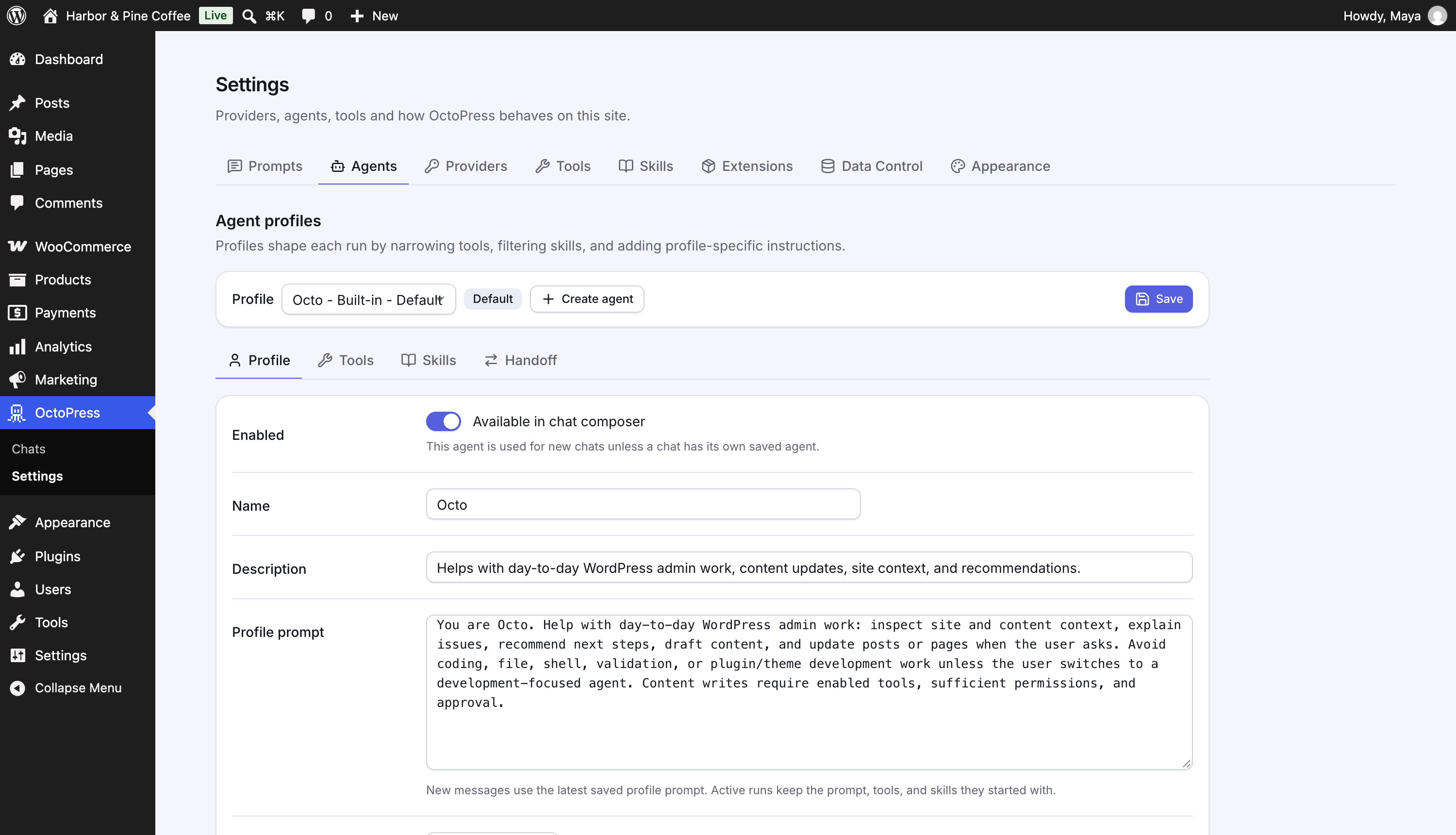
Built-in agents#
| Agent | Edition | Good for |
|---|---|---|
| Octo (default) | Free | Everyday administration, focused content edits, media, menus, comments and basic WooCommerce products/orders. |
| Content Writer | Free | Substantial writing, editorial planning, readability and theme-aware block/page design. |
| Builder | Pro | Plugin, theme and integration implementation with scoped file and validation tools. |
| Development Planner | Pro | Read-only code/site inspection and development plans; no changes or code execution. |
| SEO Specialist | Pro | SEO audits and Yoast SEO or Rank Math metadata, including product SEO. |
| Store Manager | Pro | Full supported commerce workflows and product media using native tools, without PHP execution. |
Extensions and other plugins can add agents too. They are labelled Extension.
Each built-in can suggest the other available built-ins when another specialty is needed. Handoffs require confirmation and do not grant tool access or permissions. Small supported tasks stay with the current agent. See the default tool and skill assignments.
Review agent updates#
After an update changes how the built-in agents are set up, OctoPress opens Agent updates on your first visit, and shows an Agent updates are ready bar until you decide. Each agent lists what changed in plain words. If you skipped versions, for example from 0.6.0 straight to 0.8.0, you see the notes of every release in between, newest first.
Agents you have edited are marked You edited with the fields involved, and the screen names tools you added yourself that the update would remove. Expand Changes in detail to see added, removed and renamed tools and skills, and which sentences of the instructions change.
Replace settings for N agents replaces the selected built-ins' names, descriptions, instructions, tool and skill lists and handoff settings with the recommended setup, including your edits to those fields. Enabled states, model selections, your default agent, custom-created agents and global tool/skill policy stay unchanged. New agents can be enabled or left disabled explicitly.
Choose Review later to keep working; the bar stays until you decide. Clear the selection and choose Keep my setup to keep everything as it is. That decision is final for those changes, but you can put any built-in agent back on the recommended setup later: open Settings → Agents, choose the agent and click Reset to recommended. Unavailable Pro features are deferred, not enabled. Active runs keep their snapshots; accepted changes apply to future runs. Tools that no longer exist cannot remain callable.
Edit an agent#
Open Settings → Agents. At the top, choose the agent in the Profile list (entries read, for example, Octo - Built-in - Default). Use the four tabs below, then click Save. "Unsaved changes" shows until you do.
Profile#
- Enabled ("Available in chat composer"): off hides the agent from the chat.
- Name and Description.
- Profile prompt: instructions added for this agent on top of the system prompt.
- Default model: a provider and model used only when the chat and your browser have no remembered model.
Tools#
Tick the tools this agent may use. Use Filter allowed tools… to search. Tools that are switched off globally show Globally disabled and cannot be ticked until you enable them in Tool access.
Skills#
Tick the skills this agent may load. See Skills.
Handoff#
- Allow handoff to other agents: when on, at least one target is required.
- Allowed handoff targets: the agents this one may suggest.
- Handoff guidance: instructions shown only to this agent about when to suggest a handoff.
See Questions, plans and handoffs.
Set the default agent#
Select the agent and click Set as default (it must be enabled and not archived), then Save. The default is used for new chats unless the chat already has its own agent.
Create a custom agent#
- Click Create agent. It starts as Custom Agent, copied from Octo's tool and skill lists.
- Name it, describe it and write its prompt.
- Adjust Tools and Skills.
- Click Save. It appears in the chat's agent list.
Custom agents can be hidden with Archive and brought back with Restore. Archived agents disappear from chat and from handoff targets, and an archived default is replaced.
Good to know#
- Changes apply to new messages. A run that has already started keeps the prompt, tools and skills it started with.
- A tool is only usable if the agent allows it and it is enabled globally and your role is high enough.
- Saving is blocked with a message when a handoff-enabled agent has no target ("… needs at least one handoff target.") or when the chosen default is not an enabled agent ("Choose an enabled agent as the default.").
- Built-in agents can be edited but not archived.