
Your first chat
Send your first message to Octo, read the answer, and approve or reject a change.
Open the chat#
Go to OctoPress → Chats. A new chat opens with the heading What can Octo help with? and a few starter cards.
Send a message#
You have two ways to start:
- Click a starter card. For example Site overview or Review recent posts. The card fills the message box with a prompt but does not send it. Edit the text if you like, for instance the
…in Draft a post. - Type your own. Click the message box (it says Message Octo) and describe what you need.
Press Enter to send, or Shift+Enter for a new line.
Starter cards depend on the tools that are enabled. If you switch tools on or off, the cards change.
Read the answer#
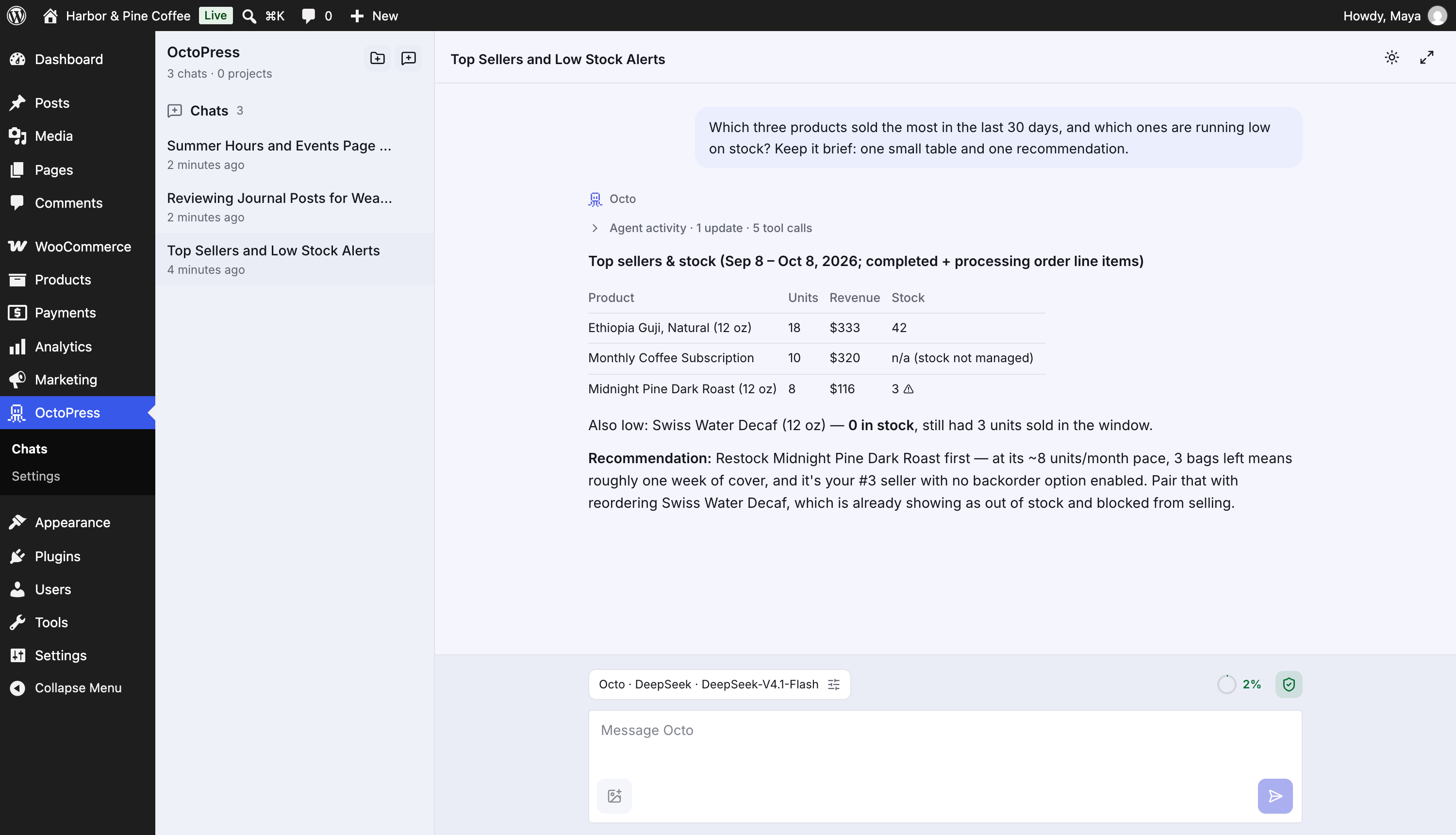
Octo's reply streams in as it is written. While it works you may see a row such as 3 tool calls. Click it to see what Octo looked at. Click the document icon on a row to see the exact request and result.
Approve a change#
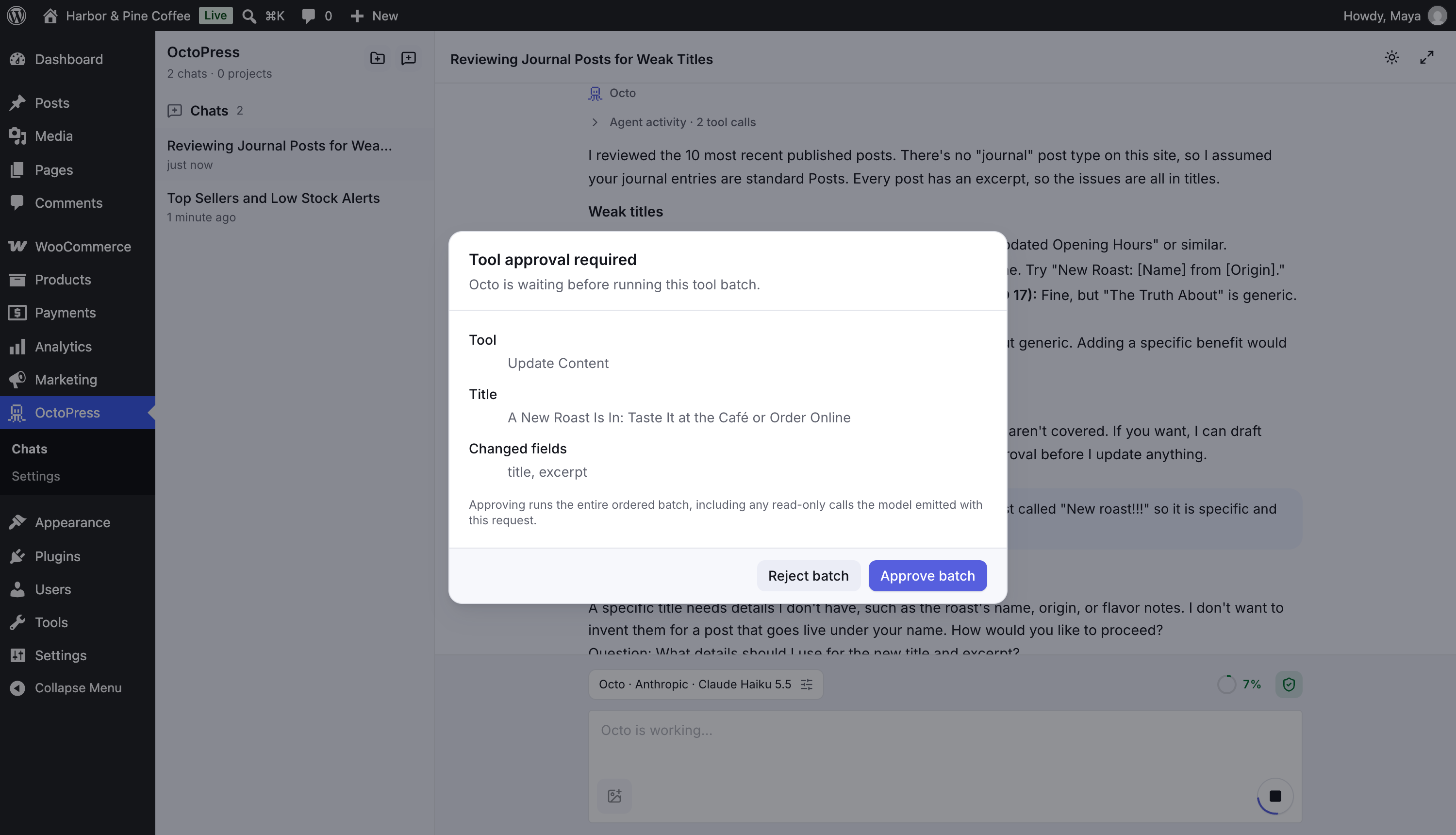
Reading your site never needs approval. When Octo wants to change something, for example update a post, the Tool approval required window opens.
- Check the Tool, the target and the Changed fields.
- Click Approve batch to let Octo continue, or Reject batch to refuse.
You can also let a chat approve certain tools automatically. See Approvals and permissions.
Things to try#
- "Give me an overview of this site."
- "Look at my five most recent posts and tell me which ones need a refresh, and why."
- "Draft a post about … and propose an outline first."
- "Which plugins and theme is this site using?"
Next steps#
- Take the tour in Chat workspace.
- Organize related chats in Projects.
- Learn what each message costs in Usage and context.