Chat workspace
A tour of the chat page, with the chat list, message box, agent and model picker, stop, retry and distraction-free mode.
Open OctoPress → Chats. The page has a chat list on the left, the conversation in the middle and the message box at the bottom.
The chat list#
The list shows your chats, newest first, with how long ago each was updated. Projects appear above it as folders (see Projects).
- New chat (speech-bubble icon in the list header) starts a fresh conversation.
- Create project (folder icon) opens the project window.
- Click a chat to open it. The address in your browser changes to
…page=octopress&chat=<id>, so you can bookmark it. Only you can open your chats.
Each chat has a Chat actions menu (the three dots):
| Action | What it does |
|---|---|
| Rename | Edit the title in place. Enter saves and Esc cancels. Titles are generated automatically after the first exchange. |
| Move to project… | Put the chat in a project, or back in Chats. Not possible while the chat has an active run. |
| Archive | Removes the chat from the list. |
| Delete | Deletes the chat permanently, after a confirmation. |
The list shows your 50 most recent chats. Archive hides a chat from the list and there is currently no screen to bring it back, so use Delete only when you are sure, and prefer projects to keep things tidy.
The message box#
- Type in the box that says Message Octo. Enter sends, Shift+Enter adds a new line.
- While Octo works the placeholder reads Octo is working… and the send button becomes Stop. Click it to cancel the run.
- Attach images with the image button. See Images in chat.
Choose the agent, provider and model#
Above the message box a button reads something like Octo · ChatGPT · GPT-6-Luna. Click it to open Chat settings:
- Agent: Octo, Content Writer, or any agent you or an extension added. See Agents.
- Provider and Model: only providers and models you enabled in Settings appear. The refresh button next to Model re-reads the list from the provider; it can be used once every 30 seconds.
- Context usage: how full the model's window is. See Usage and context.
- Permissions: see Approvals and permissions.
Your choice is saved with the chat and remembered in your browser for new chats. You can switch in the middle of a conversation.
Stop and retry#
- Stop cancels a run that is working or waiting for you.
- If a run fails, for example the provider timed out, a red message explains why and a Retry button appears in the top bar. Retry uses the agent, provider and model that are selected right now, so change them first if the problem was the model. Your message is not sent twice.
When Octo needs you#
Some answers need a decision from you. A window opens and the chat waits:
- Tool approval required: approve or reject a change.
- Octo needs your input: answer a question.
- Review plan and Switch agent?: confirm a plan or an agent change.
If you have the tab in the background, the browser tab title starts with (Action needed). See Questions, plans and handoffs.
Distraction-free mode#
On wide screens, the Distraction-free mode button in the top bar hides the WordPress admin bar, menu and footer so the chat fills the window. Click it again to bring them back. The setting is remembered in your browser.
On a phone#
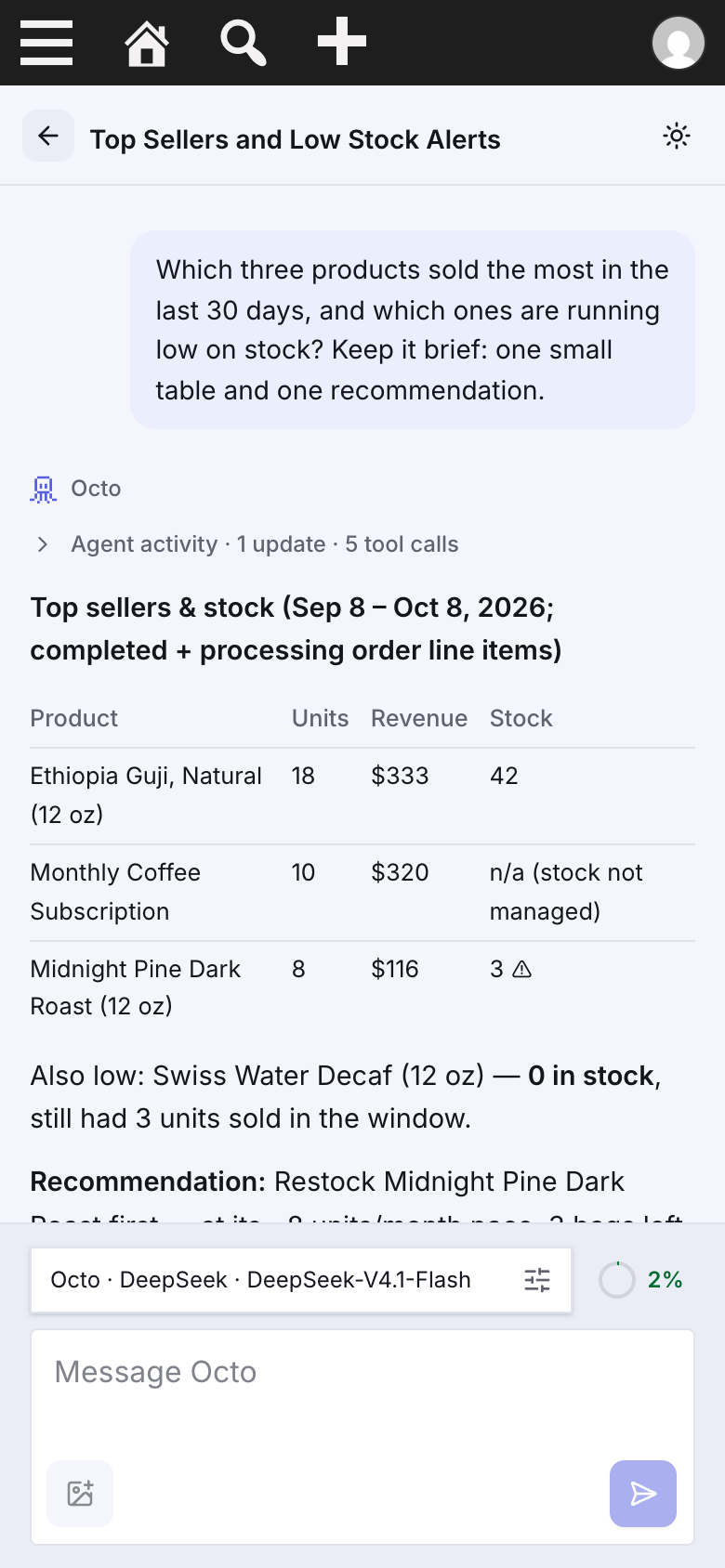
On small screens the chat list opens from the menu button, and the agent, model and permissions controls are inside the Chat settings window.
Dark mode#
Use the sun/moon button in the top bar, or choose System, Light or Dark in Appearance.